The network settings
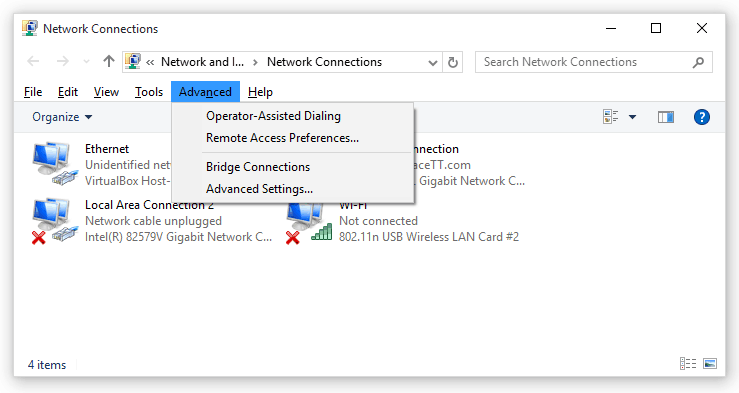
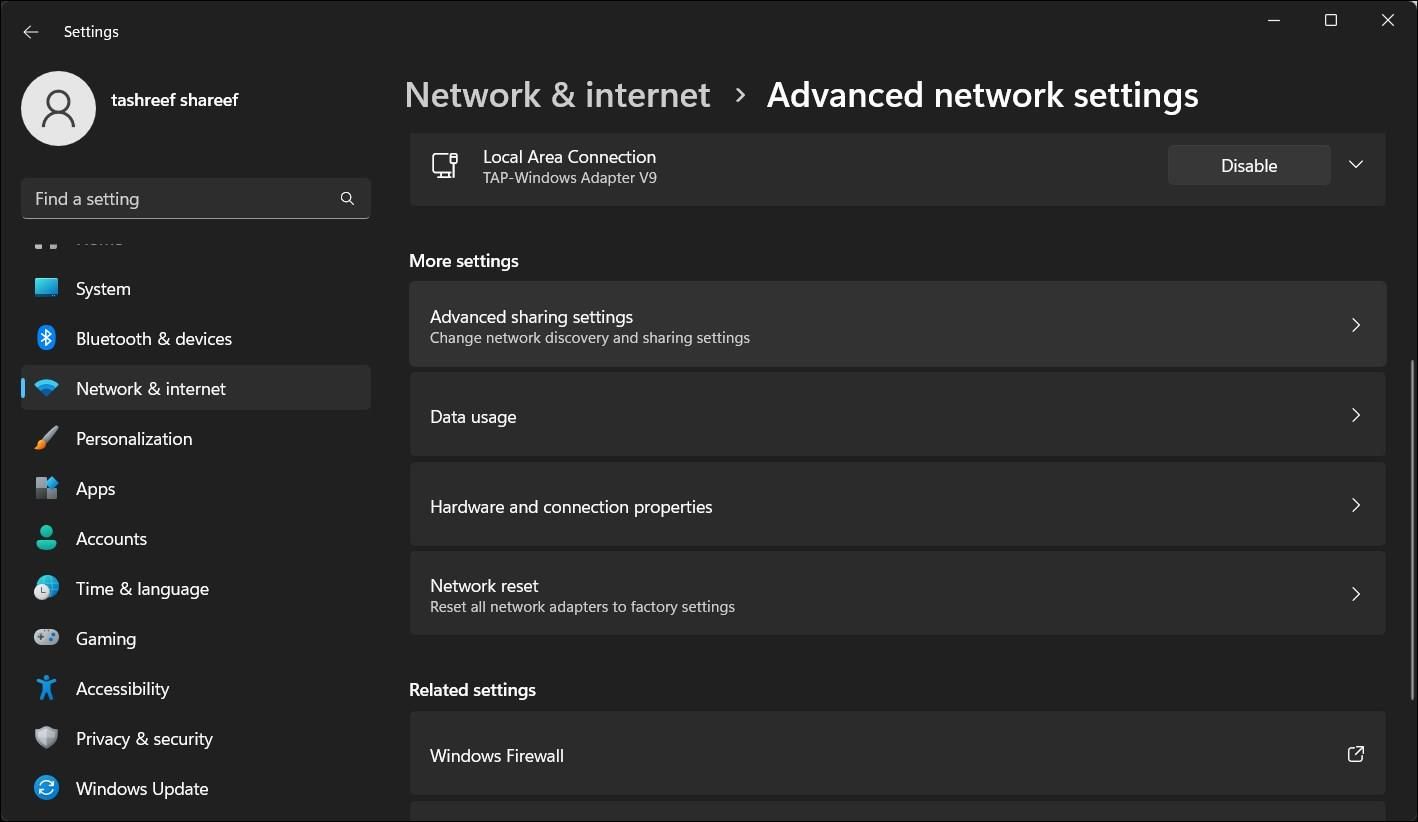
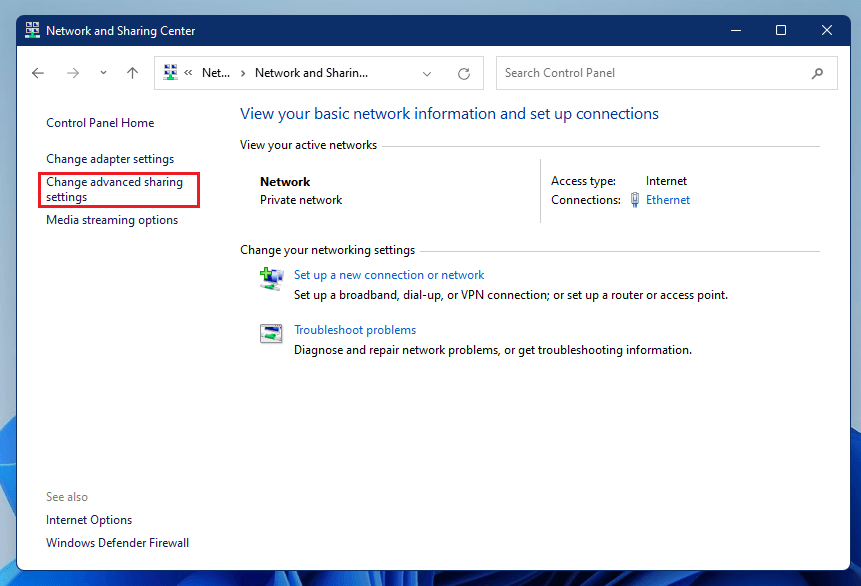
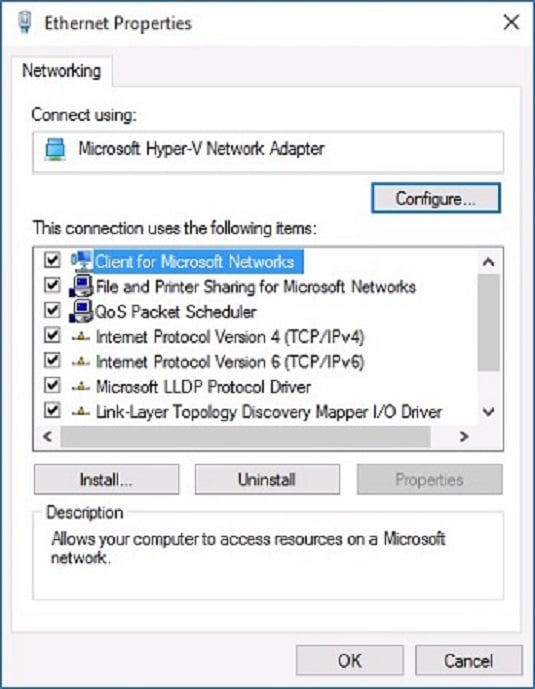
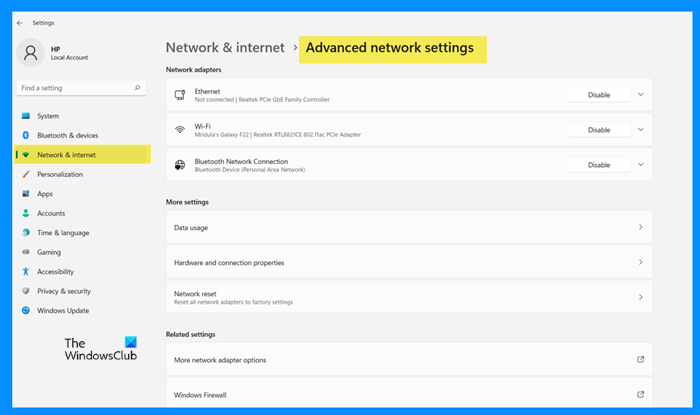
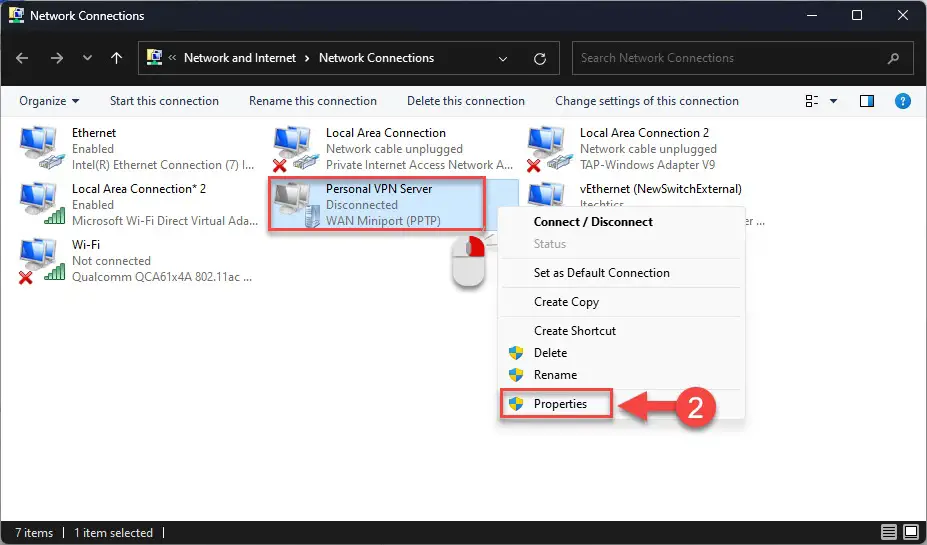
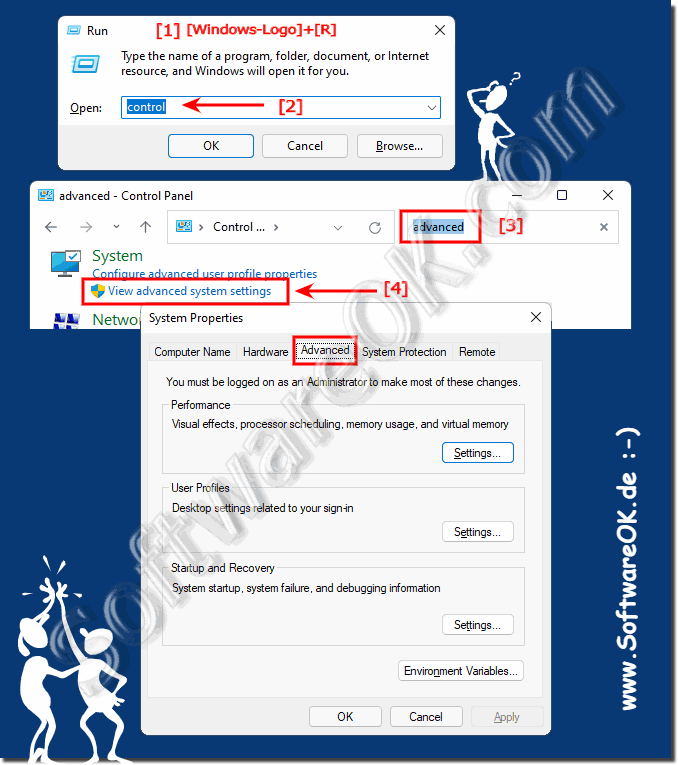
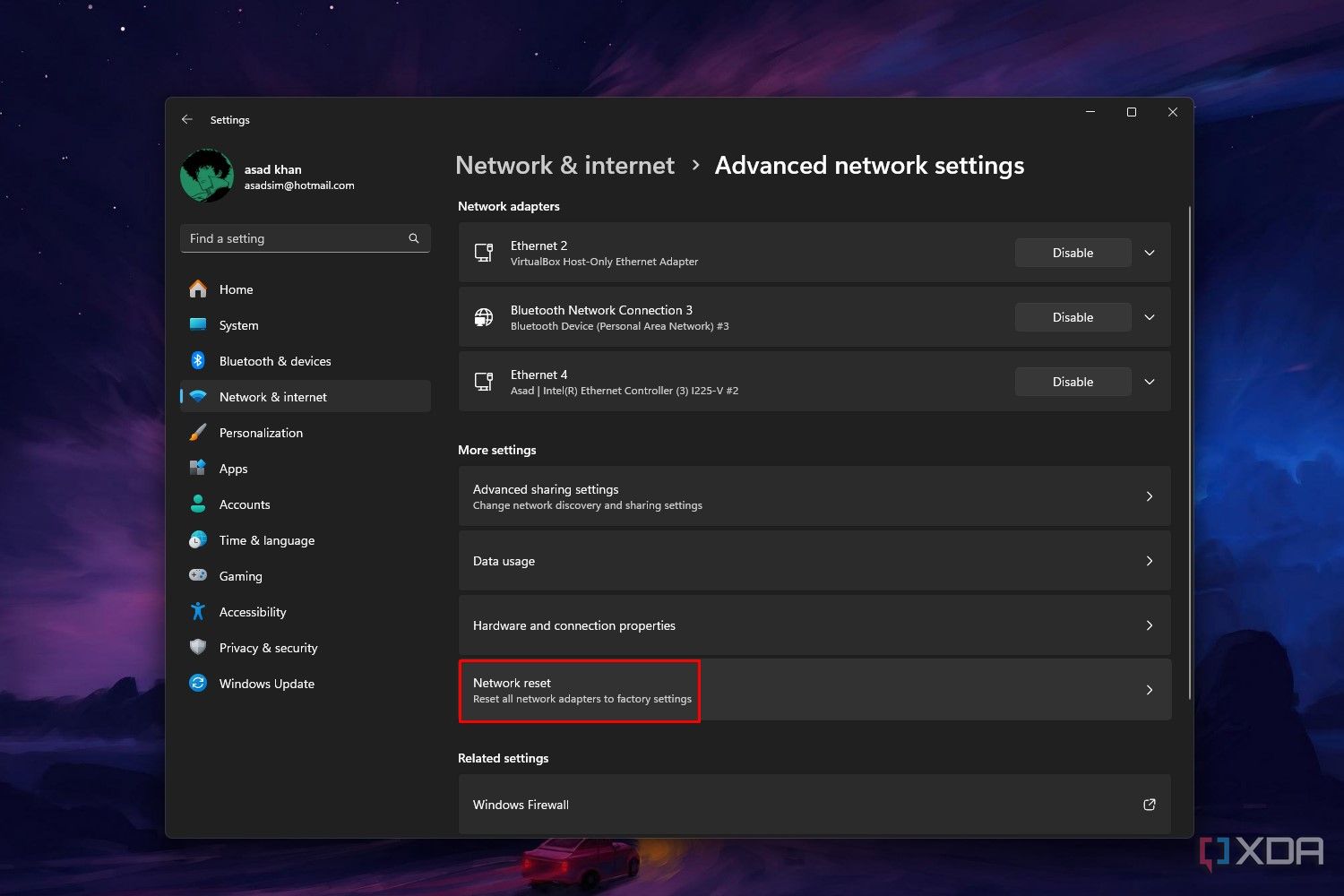
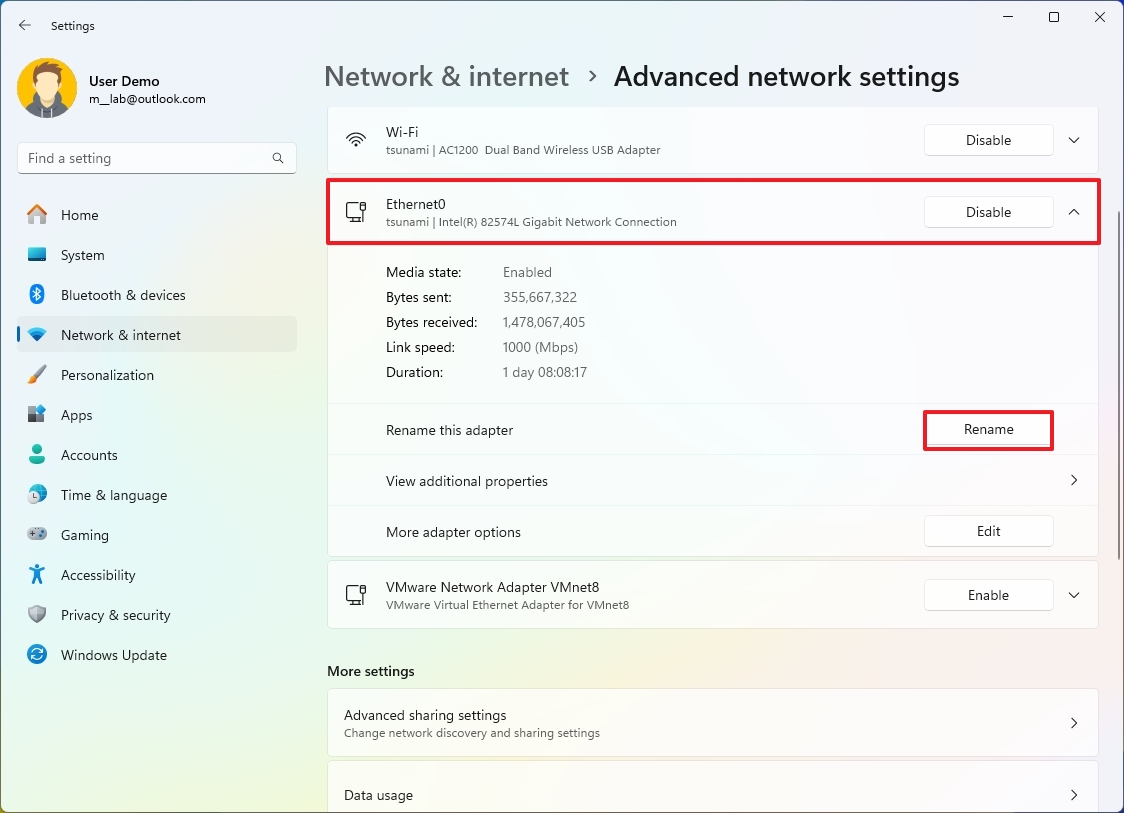
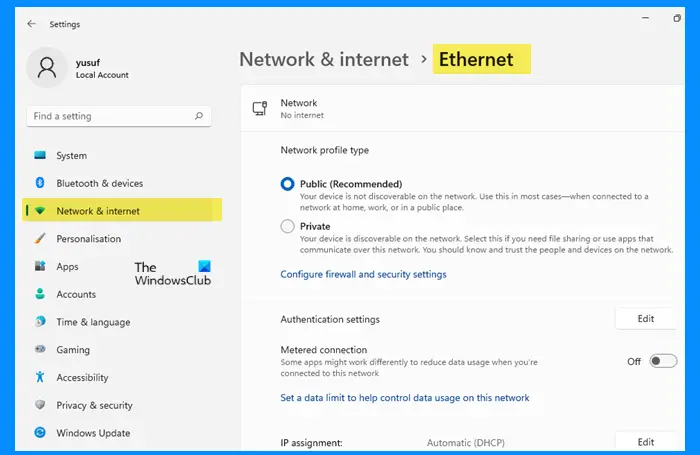
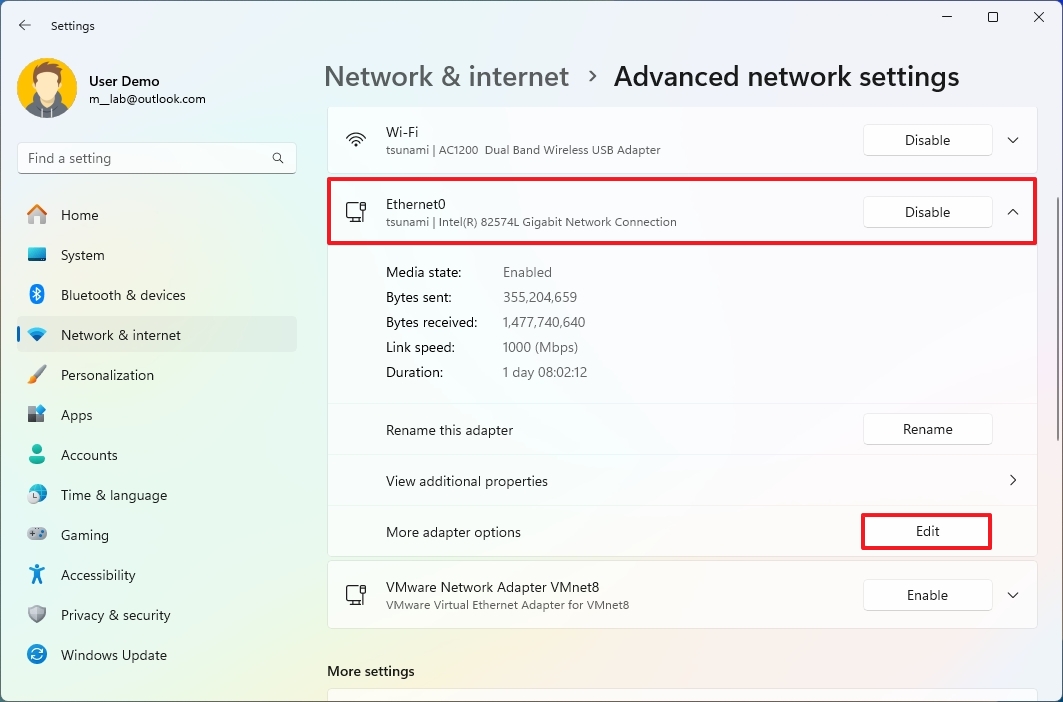
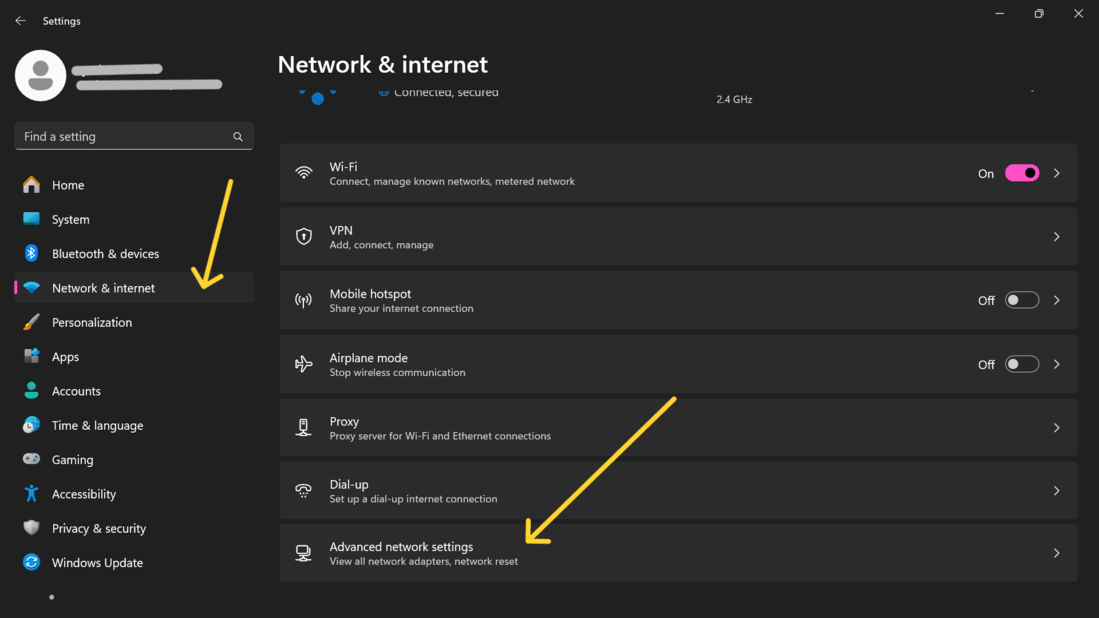
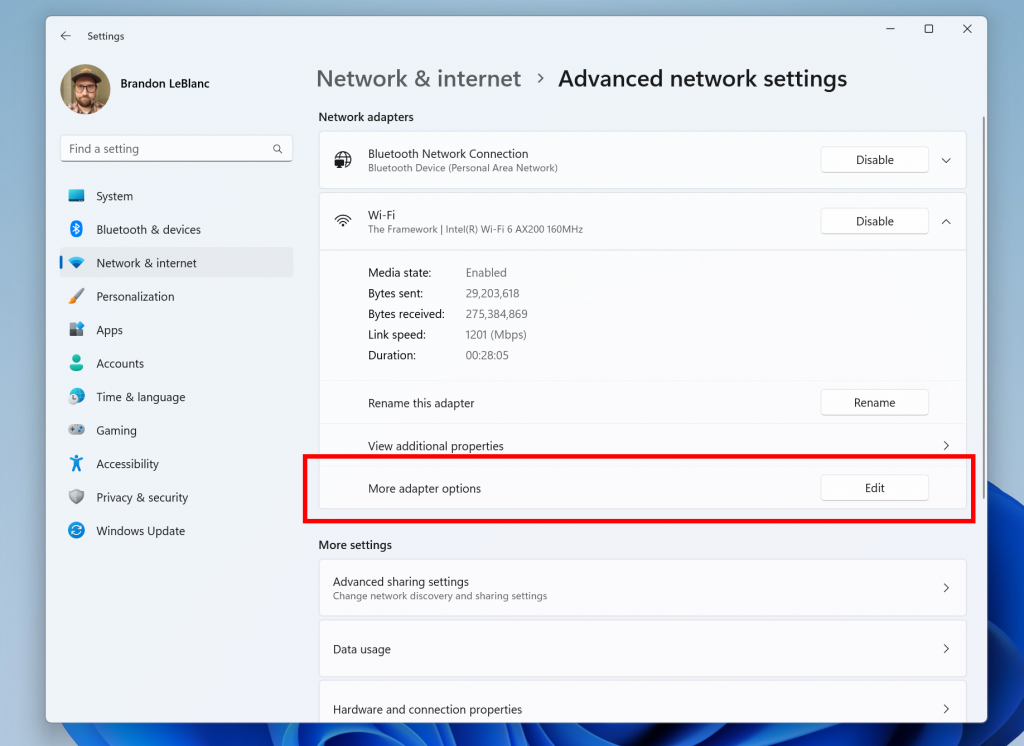
On Windows 11, you can find the network configuration information within the adapter's properties or through the Advanced network settings page. Ethernet properties
Network & Internet Settings in Windows 11
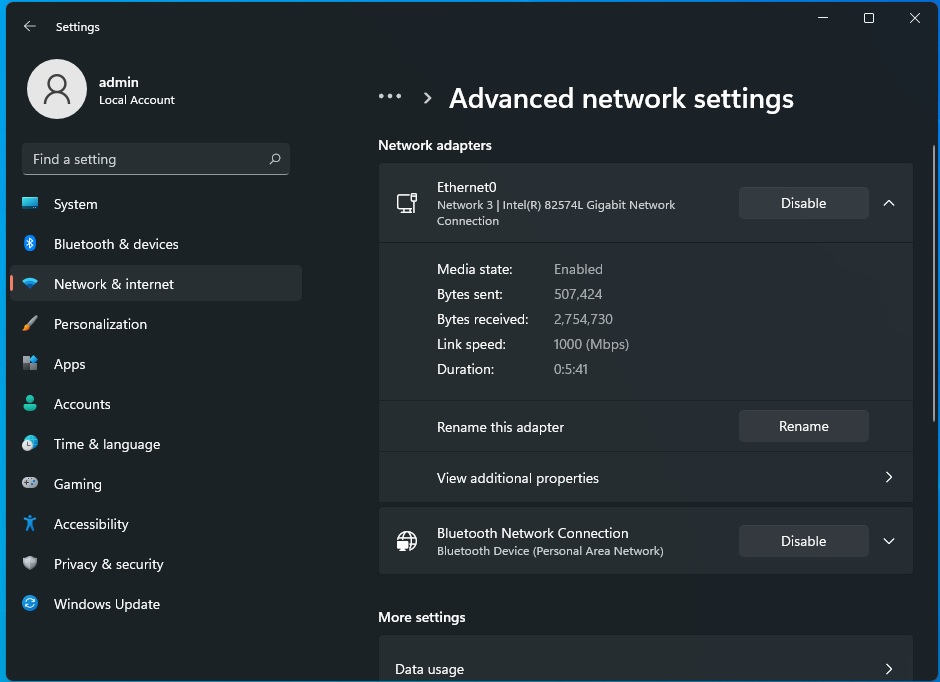
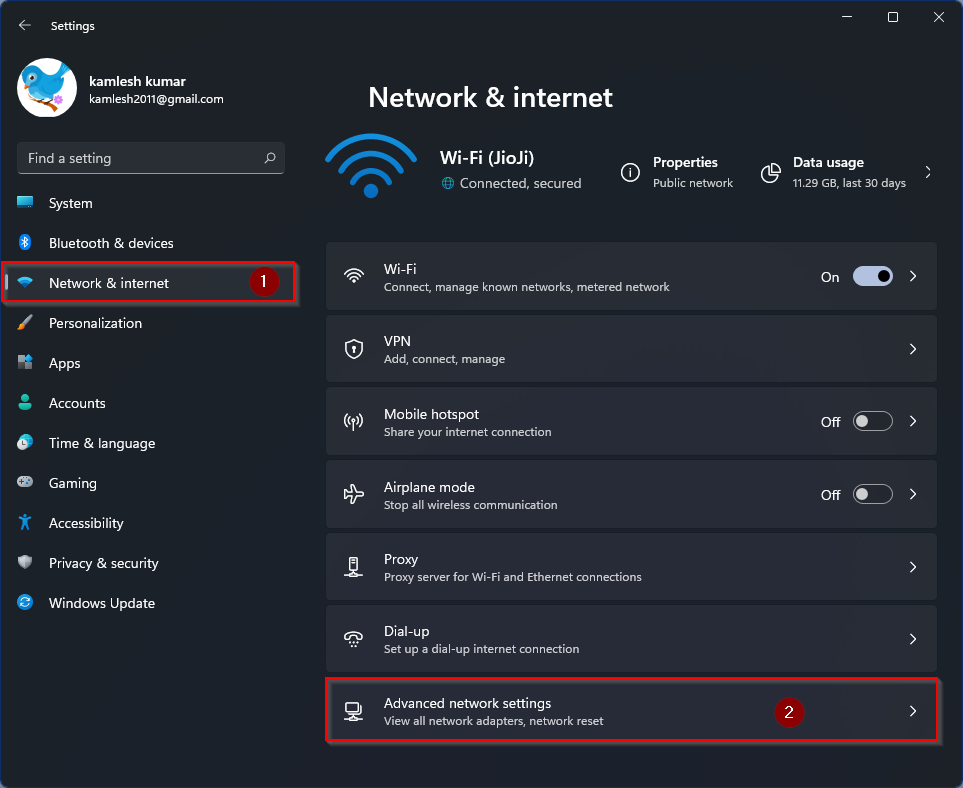
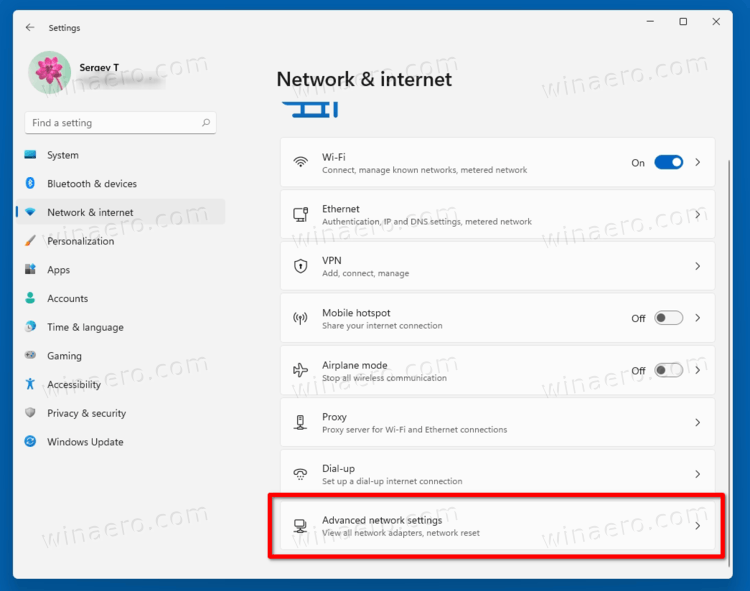
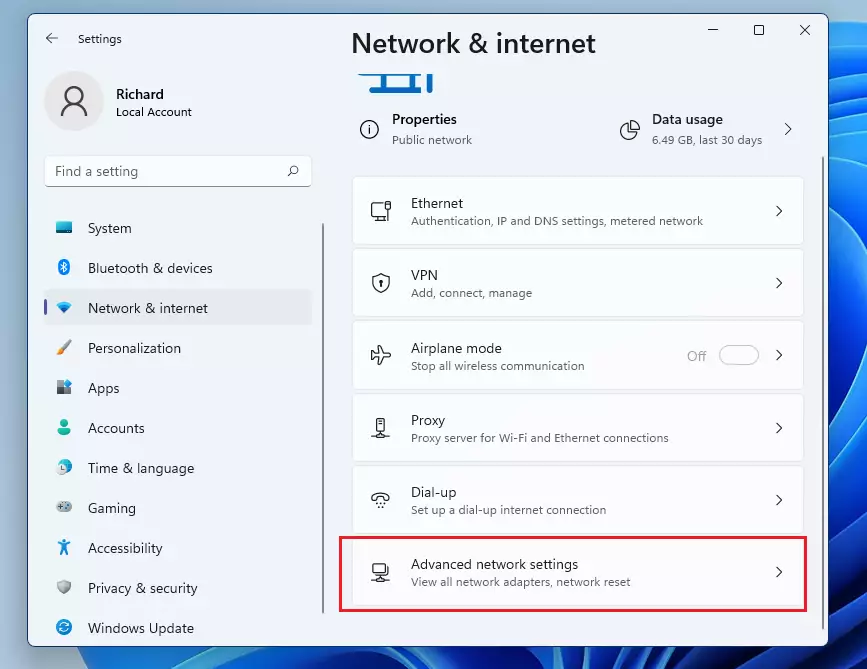
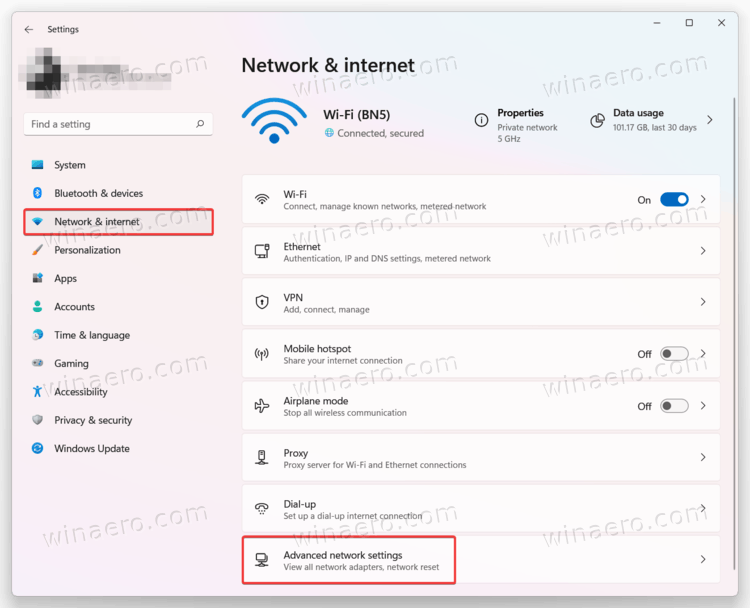
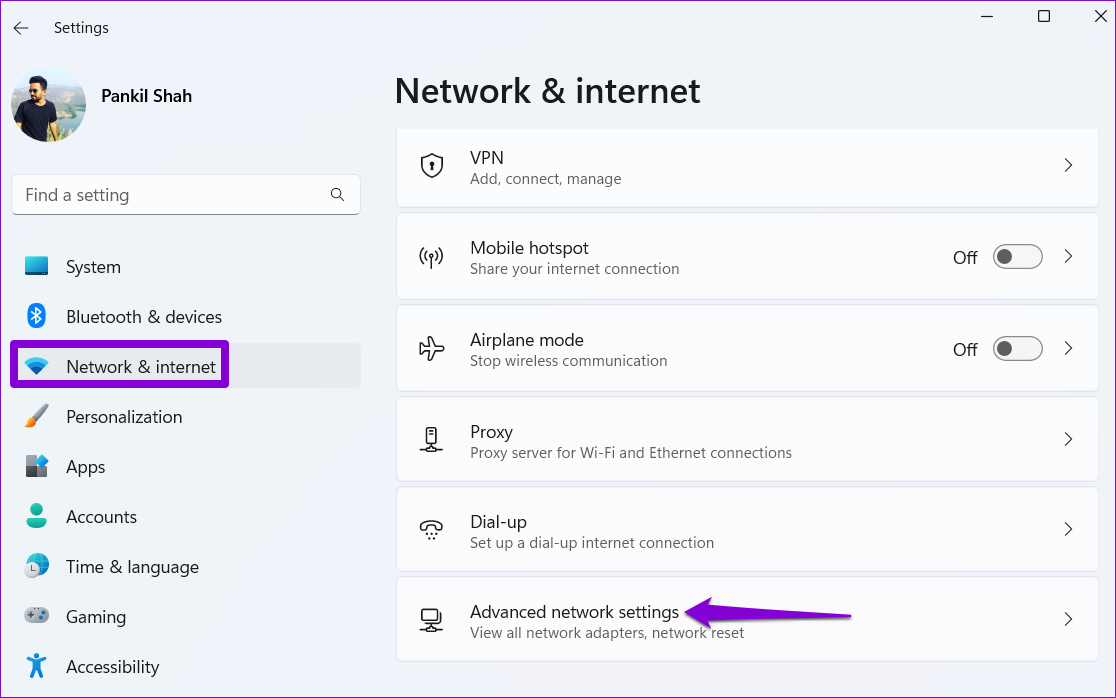
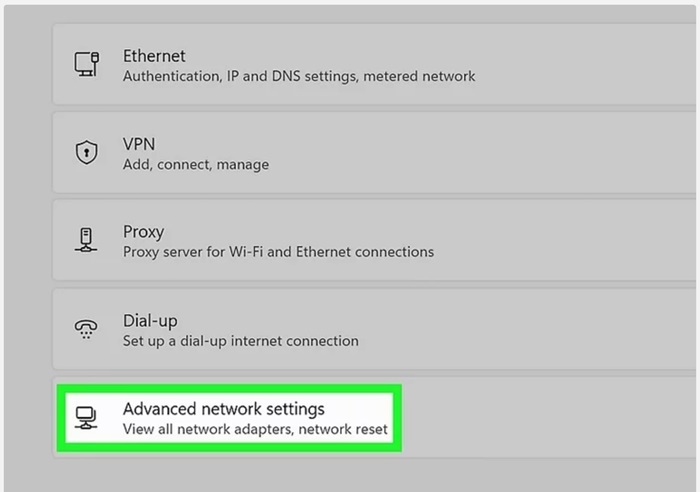
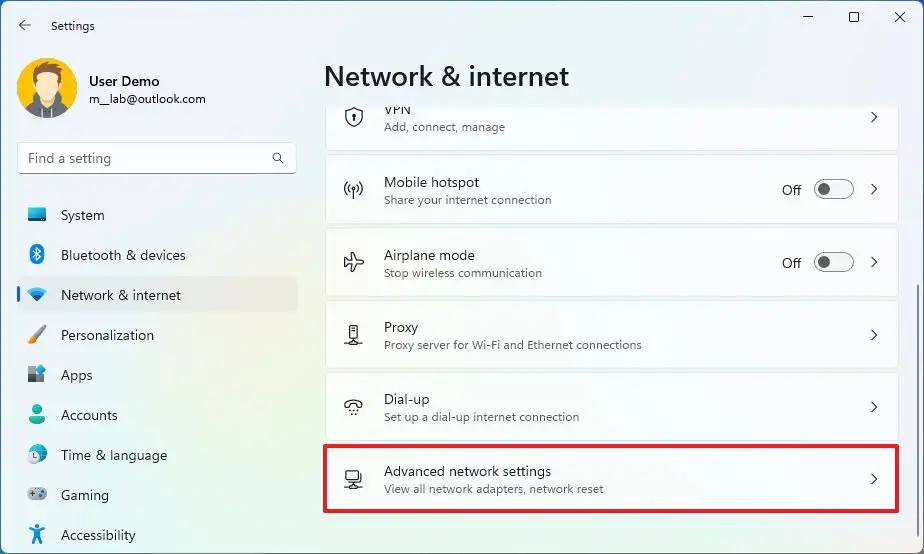
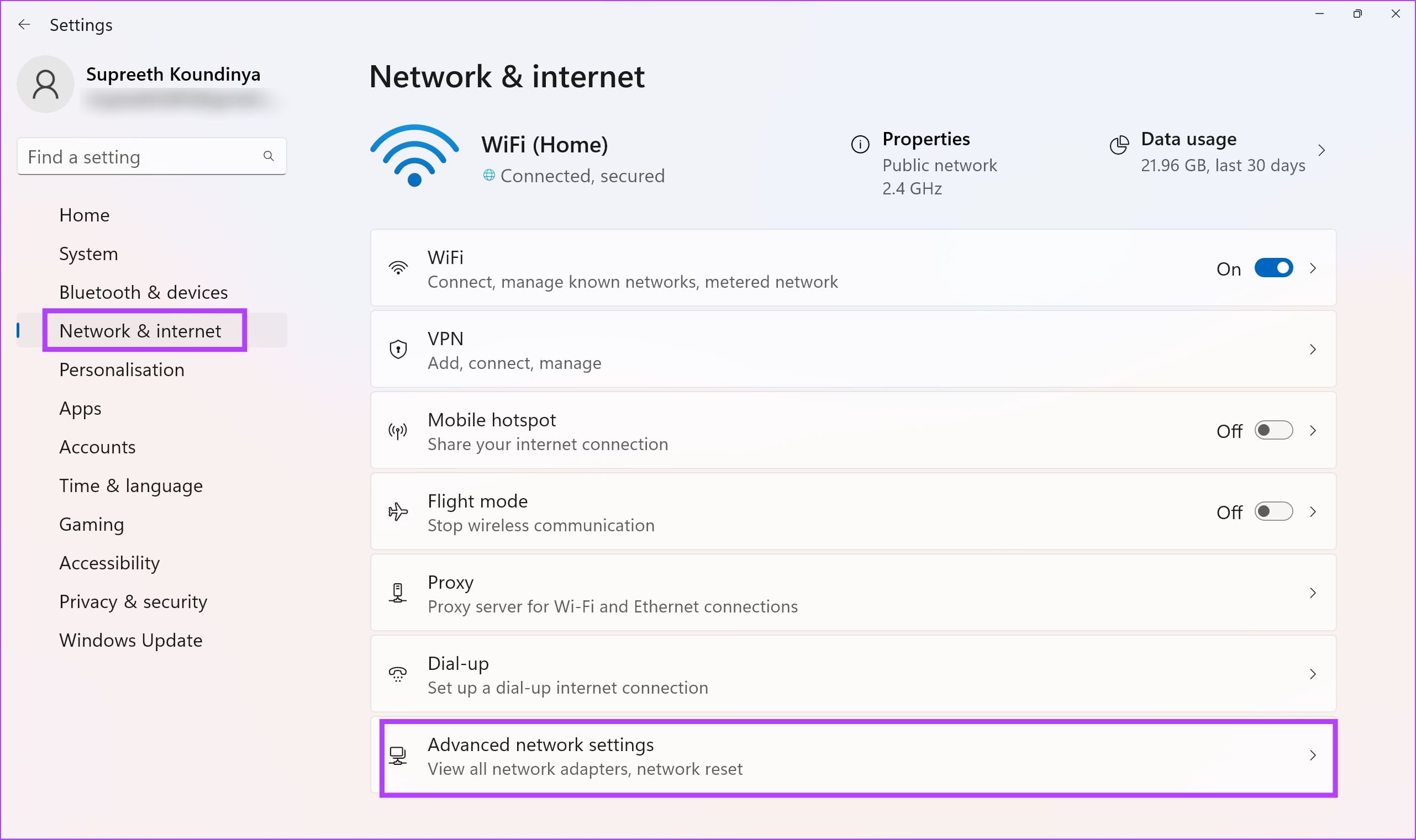
To change the network settings in Windows 11, press Win+I to open the Windows Settings panel first. Then, go to the Network & internet section and click on the Advanced network settings menu.
Windows 11 includes a redesigned Network & Internet settings page that makes it easier to manage Wi-Fi, Ethernet, VPN, proxy, and advanced network options. Whether you are troubleshooting connectivity issues or configuring a new network , understanding these settings is essential.
Essential Network Settings and Tasks in Windows
Learn about essential network settings and tasks in Windows, such as finding your IP address, setting data limits, toggling Airplane mode, and more.

Such details provide a deeper understanding and appreciation for Advanced Pc Network Setting Configuration.
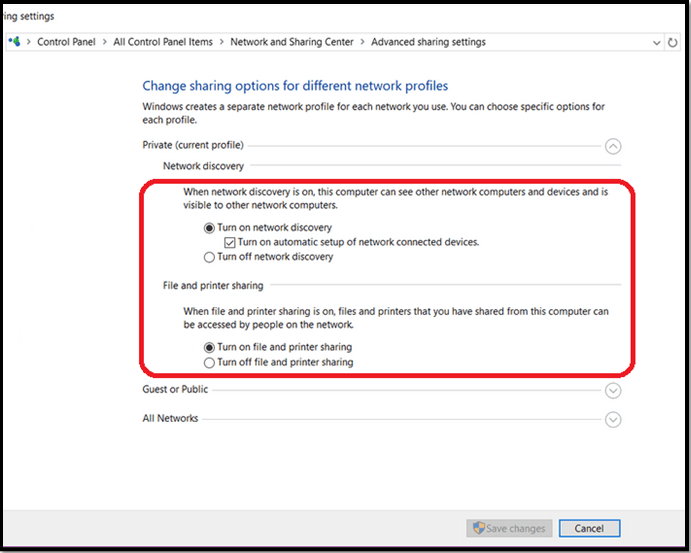
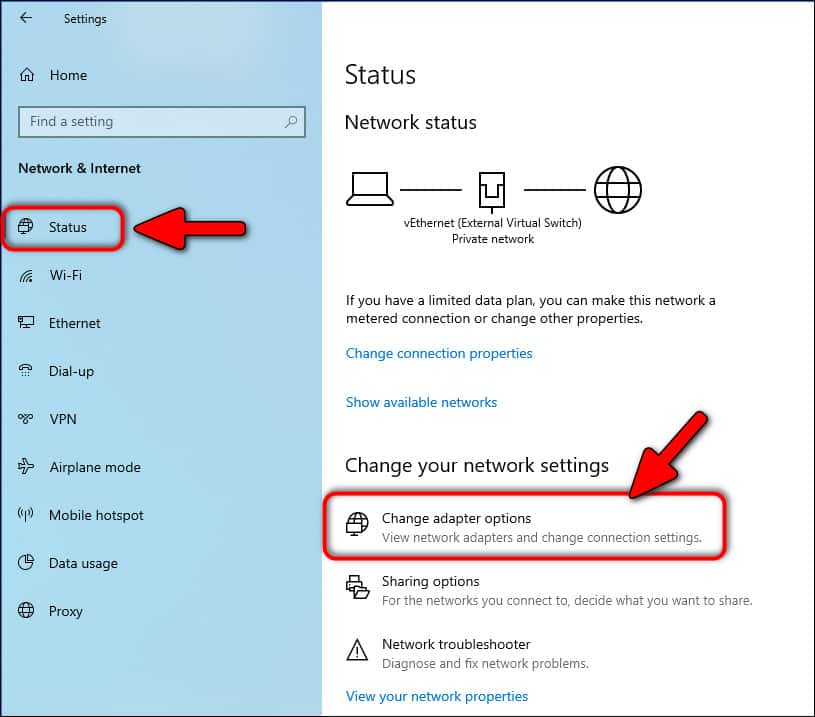
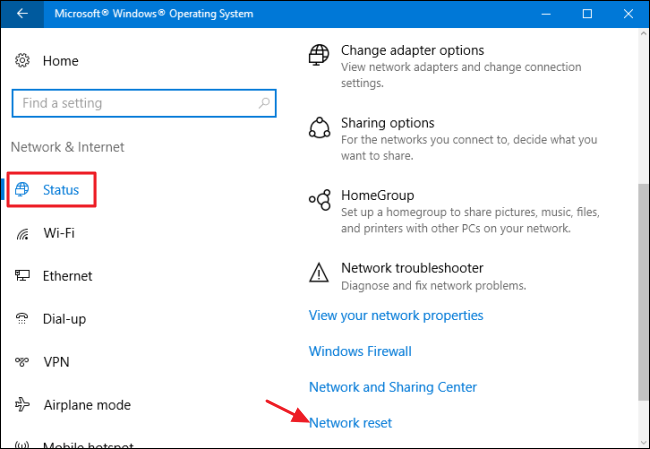
Learn how to adjust Network and Internet settings in Windows 10. Manage Wi-Fi Sense, VPN, Proxy, Data Usage, Airplane Mode, Dial-Up, Ethernet connections.
Ultimate Windows 11 Ethernet Optimization Guide
From basic settings to Registry edits, this all-in-one guide shows how to optimize your network connection in Windows for speed and stability
More Context About Advanced Pc Network Setting Configuration
How to Enable or Disable Wi-Fi in Windows 11 - EU-Vietnam Business. It gives the article a little more context before the image collection begins.
How to Rename a Network Adapter in Windows 11. This note connects the source idea with the visuals in a simple, reader-friendly way.
How to manage network adapter settings on Windows 11 | Windows Central. This note connects the source idea with the visuals in a simple, reader-friendly way.
Looking at multiple sources also helps separate the main idea from small decorative details.
These notes are added so the page offers more than images and gives each visitor a clearer reason to keep reading.